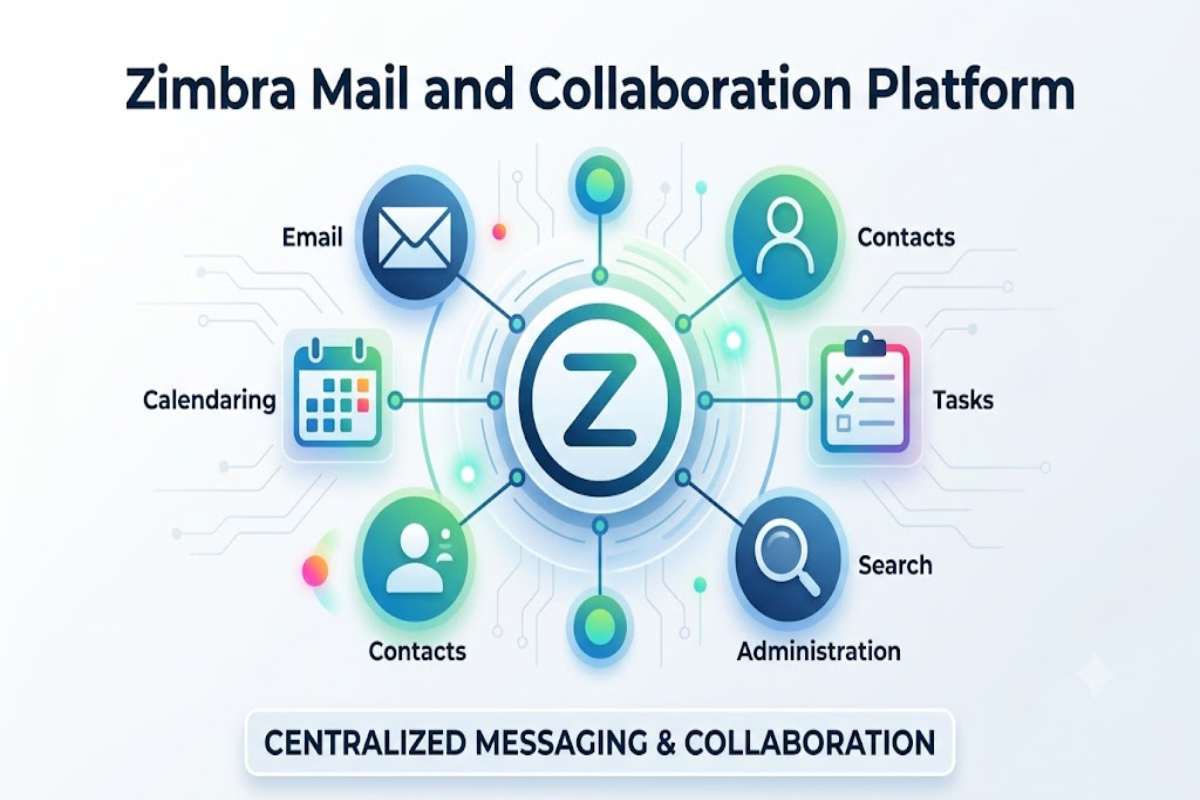
For organisations that need more than a basic inbox, email is often only one part of the communication system. Employees may also need calendars, contacts, tasks, shared folders, search, mobile access and administrative controls. Zimbra Mail sits in this broader category: it is part of Zimbra Collaboration, a messaging and collaboration platform designed for organisations that want email and related productivity tools under a centrally managed system.
Zimbra is not just a new way of looking at your inbox. It’s webmail, calendaring, contacts, tasks, administration, integrations, deployment and licensing options. Zimbra’s latest documentation focuses on Daffodil 10– there is new and classic webapp documentation, install docs, migration guides and admin docs.
What Is Zimbra Mail?
Zimbra Mail generally refers to the email functionality provided through Zimbra Collaboration, a collaboration and messaging platform used by organisations, businesses, educational institutions and service providers.
Zimbra is not an independent personal email service but is built to operate within an organisation’s existing messaging system. Organisations have the ability to use their own domain name and manage their own user accounts and permissions along with key mailbox features.
The web client combines email with other productivity functions. Zimbra’s documentation describes capabilities including email, address books, calendars, tasks, search, folders, tags and filtering.
| Area | What Zimbra provides |
|---|---|
| Sending, receiving and organising messages | |
| Contacts | Personal and organisation-wide contact management |
| Calendar | Appointments, meetings and events |
| Tasks | To-do lists and task management |
| Search | Searching messages and other mailbox information |
| Filters | Rules for automatically handling messages |
| Administration | Central management of users, domains and servers |
| Mobile access | Support for mobile email and, depending on edition/configuration, additional synchronisation |
| Integrations | Support for selected clients and protocols |
The exact features available to an individual user depend on how their organisation has configured Zimbra and which edition or licence it uses.
How Does Zimbra Mail Work?
At a basic level, a Zimbra installation consists of server-side services that handle mail and collaboration data, while users interact with their accounts through a web browser or compatible email client.
A simplified flow looks like this:
Sender → Mail infrastructure → Zimbra server → Recipient’s mailbox → Web/mobile/email client
For example, when someone sends an email to an address hosted on a Zimbra server, the organisation’s mail infrastructure receives and processes the message before placing it in the appropriate mailbox.
The user can then access the message through the Zimbra web interface or another supported method.
For administrators, the system goes much deeper. Zimbra provides a browser-based administration console for managing servers, mailbox accounts and organisational settings.
Zimbra Mail Features
One of the strongest arguments for Zimbra is that email does not operate in isolation. The platform combines several communication and productivity functions.
1. Email Management
Users can compose, send, receive, reply to and organise email messages.
The interface supports common mailbox features such as folders, conversations, tags, attachments and signatures. Users can also configure rules to automatically process messages.
Zimbra’s web-client documentation specifically describes filters that can sort incoming messages, apply tags, forward or discard messages and perform other actions based on conditions.
2. Conversation View
Instead of displaying every reply as an entirely separate item, Zimbra can group related messages into conversations.
This is useful for long business discussions because users can follow a complete exchange without manually searching for each reply.
3. Advanced Search
Search is particularly important in business mailboxes because users may accumulate thousands of messages.
Zimbra supports searching email and other mailbox information, while current edition documentation lists advanced search and attachment search among its capabilities.
4. Calendar
Zimbra includes calendar functionality for appointments, meetings and events.
Depending on configuration and edition, organisations can also use group and resource scheduling. This makes the platform more useful for teams than an email-only service.
5. Contacts
Users can maintain address books and contacts. Organisations can also configure broader directory capabilities, including global address lists in supported configurations.
6. Tasks
Tasks allow users to maintain to-do lists, assign priorities and track progress.
This is a relatively simple feature, but it can be useful when email, meetings and action items need to remain within the same workspace.
7. Filters and Rules
Filters are one of the more practical features for people dealing with high email volumes.
For example, a user could create a rule that moves messages from a particular sender into a dedicated folder. Zimbra supports conditions and actions that can automate this type of mailbox organisation.
Zimbra Web Client
Most users encounter Zimbra through its web interface.
The interface has evolved over time, and Zimbra’s current documentation distinguishes between modern and classic web applications. The modern web application was designed with responsive use across devices in mind.
The important point for beginners is that the exact appearance of a Zimbra mailbox can differ between organisations.
Your employer, school or service provider may use a particular Zimbra version, theme or configuration. Some features may also be disabled by the administrator.
| User need | Possible Zimbra solution |
|---|---|
| Read email | Mail application |
| Organise messages | Folders, tags and filters |
| Find old messages | Search |
| Schedule meetings | Calendar |
| Save contacts | Address Book |
| Track work | Tasks |
| Manage shared information | Sharing and delegation features |
| Access from different devices | Responsive web interface and supported clients |
How to Log In to Zimbra Mail
There is no single universal Zimbra login address.
This is an important distinction for beginners.
If your organisation uses Zimbra, its administrator or IT department normally provides the correct webmail address. It could use a company-specific domain or subdomain rather than a generic Zimbra URL.
A typical login process is:
- Open the Zimbra webmail address provided by your organisation.
- Enter your complete email address or username.
- Enter your password.
- Complete any additional authentication step if your organisation requires it.
- Open your mailbox.
Do not assume that a random Zimbra login page found through a search engine belongs to your organisation.
For administrative access, Zimbra’s documentation gives a typical administration-console URL pattern using port 7071, although the actual address depends on the server configuration.
What If You Cannot Log In?
Start with the simplest possibilities:
| Problem | What to check |
|---|---|
| Wrong password | Reset it through your organisation’s approved process |
| Wrong username | Confirm the complete email address |
| Wrong website | Ask your administrator for the official webmail URL |
| Account disabled | Contact the organisation’s IT administrator |
| Browser problem | Try an updated browser or private window |
| MFA problem | Check the organisation’s authentication method |
| Server outage | Ask IT or check the organisation’s service-status communication |
A Zimbra login problem does not necessarily mean that your mailbox has been deleted. Authentication, browser, network and server configuration can all cause access problems.
Zimbra Mail for Businesses and IT Administrators
Zimbra becomes considerably more interesting when viewed from an administrator’s perspective.
The administration console provides central management for Zimbra servers and mailbox accounts. Administrators can manage domains, accounts and other organisational settings, while delegated administration can allow selected users to manage specific areas.
This matters because enterprise email is fundamentally a management problem as much as a messaging problem.
An organisation may need to answer questions such as:
- Who can create new mailboxes?
- How are domains managed?
- What mailbox features are enabled?
- How are accounts disabled?
- Which integrations are allowed?
- How are backups handled?
- Which users have administrative privileges?
Zimbra provides administrative controls intended to address these requirements.
Zimbra Mail Security
Security should not be reduced to a simple statement that any particular email platform is “secure”.
The actual security posture depends on the Zimbra version, configuration, patching, server environment, authentication controls, network security and administrator practices.
Zimbra editions comparison includes platform features like integrated anti-spam/anti-virus, two-factor authentication, S/MIME digital signing and encryption, and mobile device policy management as supported features for the edition, configurable platform, and supported platforms.
For an organisation running Zimbra, a sensible security checklist includes:
| Security area | Recommended consideration |
|---|---|
| Updates | Keep supported Zimbra software and dependencies patched |
| Authentication | Use strong passwords and MFA where available |
| Admin access | Restrict administrator privileges |
| Backups | Maintain tested, independent backups |
| Encryption | Use HTTPS/TLS and appropriate email encryption options |
| Spam protection | Maintain effective anti-spam controls |
| Account lifecycle | Disable former employee accounts promptly |
| Monitoring | Monitor suspicious login and server activity |
| Recovery | Regularly test restoration procedures |
The most important lesson is that purchasing or installing email software does not automatically create a secure email environment. Operational discipline matters just as much as product features.
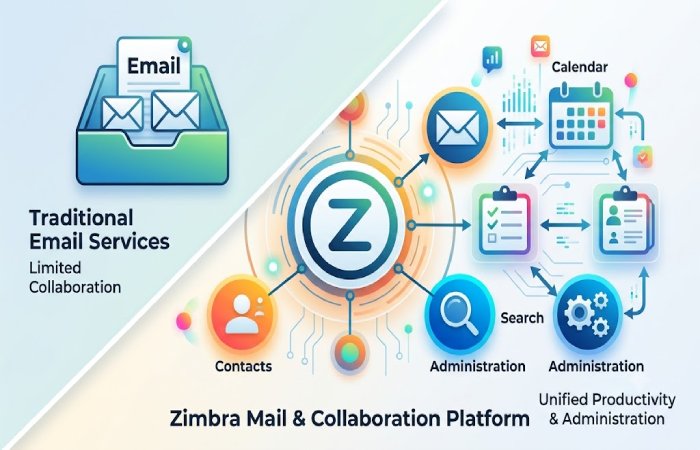
Zimbra Mail vs Traditional Email Services
The most useful comparison is not simply “Zimbra vs Gmail” or “Zimbra vs Outlook.”
The better question is:
Who controls the email infrastructure, and what level of collaboration and administration is required?
A consumer-oriented email service is generally designed to make individual email access easy. Zimbra is more closely associated with organisation-managed collaboration infrastructure.
| Requirement | Zimbra-style deployment | Consumer email service |
|---|---|---|
| Custom organisational domain | Strong fit | Depends on provider |
| Central account administration | Strong fit | Usually provider-controlled |
| Self-managed infrastructure | Possible | Usually not |
| Collaboration tools | Built into platform | Usually available through provider ecosystem |
| Administrative delegation | Supported | Depends on provider |
| Infrastructure responsibility | Can be significant | Usually low for end users |
| Customisation | Can be substantial | Usually more limited |
| Best suited to | Organisations and service providers | Individuals and organisations depending on provider |
This distinction is more useful than comparing logos or interface screenshots.
Advantages of Zimbra Mail
Zimbra’s main strength is the combination of messaging, collaboration and administration.
Centralised Collaboration
Email, contacts, calendars and tasks can exist within one platform rather than being completely separate services.
Administrative Control
Organisations can centrally manage accounts, domains and server configurations.
Deployment Flexibility
Depending on the chosen edition and architecture, organisations can design deployments around their infrastructure and operational requirements.
Familiar Email Concepts
Users who already understand conventional email can generally learn the core Zimbra workflow quickly.
Broad Integration Options
Zimbra supports multiple access methods and integrations, including standards such as IMAP and POP for email, CardDAV for contacts and CalDAV for calendars in supported configurations.
Limitations and Trade-Offs
Zimbra is not automatically the best choice for every organisation.
The biggest consideration is operational complexity.
Running an organisation’s email infrastructure can involve:
- Server management
- DNS configuration
- Deliverability
- Spam prevention
- Backups
- Security updates
- Storage management
- Monitoring
- Disaster recovery
- User administration
A small organisation that only needs reliable email may find a fully managed cloud service simpler.
By contrast, an organisation that values control, customisation and centralised collaboration may find a self-managed or professionally managed Zimbra environment more appropriate.
The key decision is therefore not whether Zimbra has enough features. It is whether your organisation has a reason to own or control the infrastructure behind those features.
Is Zimbra Mail Still Relevant?
Yes, but its relevance depends on the use case.
Zimbra continues to maintain current documentation, including resources for Zimbra Daffodil 10, modern and classic web applications, installation, upgrades and integrations.
That does not mean every organisation should migrate to Zimbra. Email infrastructure is increasingly competitive, and managed cloud platforms can reduce the operational burden considerably.
Zimbra remains particularly interesting when an organisation wants greater control over its messaging environment, domain management and collaboration infrastructure.
For professionals evaluating it today, the right questions are therefore:
- Do we need self-managed or organisation-controlled email infrastructure?
- Do we need more than basic email?
- Do we have the technical resources to maintain it?
- Which Zimbra edition provides the features we actually require?
- What are the backup and disaster-recovery requirements?
- Which integrations do our employees already depend on?
Final Verdict
Zimbra is more than an extra email inbox – it is designed as a business messaging and collaboration platform. The suite’s strength is its email, calendars, contacts, tasks, search and filtering, along with central control and administration, which make it more relevant to organisations that want to control their messaging environment.
The price of this control is that it can also create much of the management effort from infrastructure, security, updates, back-ups and administration. For the user, the key issue is where it’s login is stored; for the IT manager, it is whether the control and collaboration facilities are worth the management effort.